The map
What's on the Node home screen.
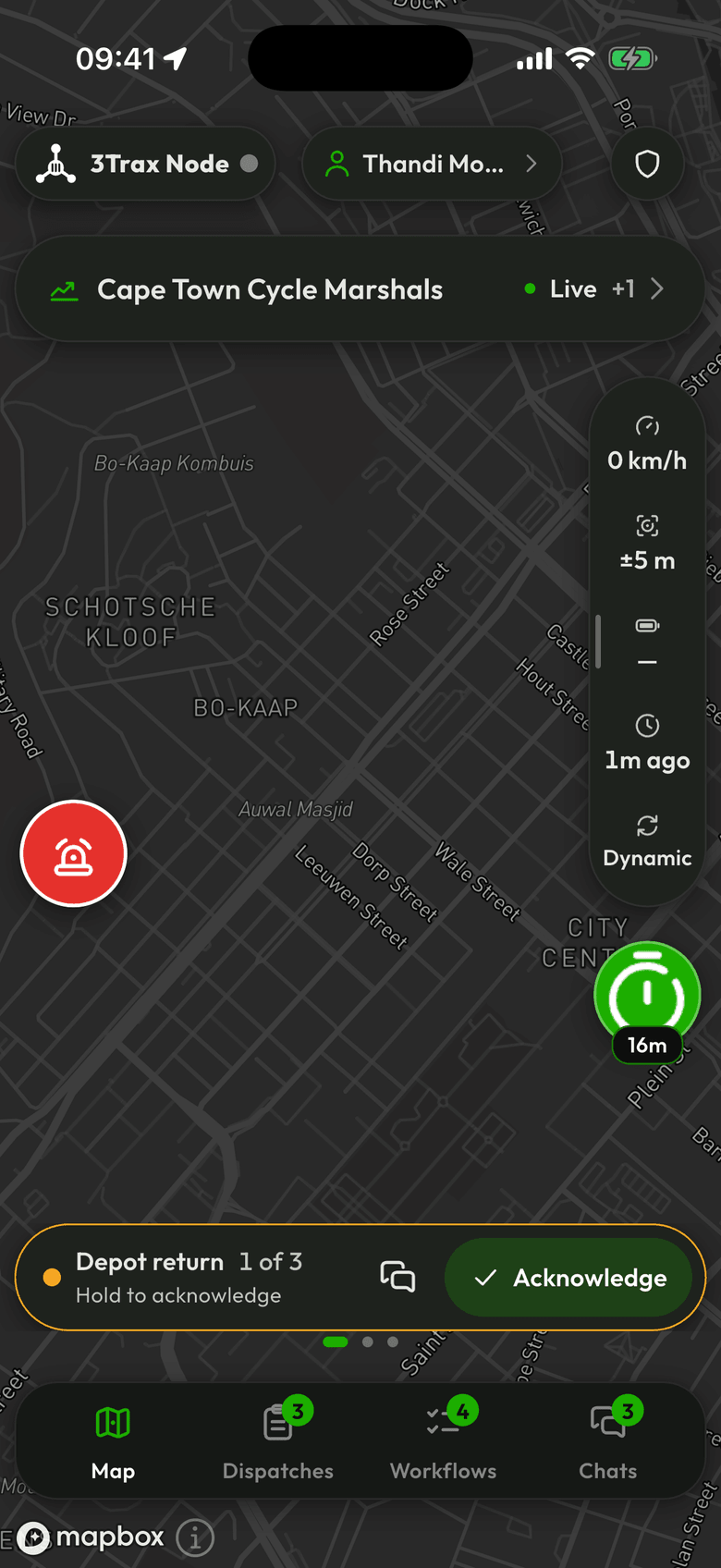
At the top
- The chip with the 3Trax Node logo shows your tracking state. If your organisation lets you pause, tap it to pause sharing.
- The chip with your name opens your Account.
The tracking rail
The rail at the side shows your Speed, Accuracy, Battery, Last fix and Mode. Tap it or swipe it out to open the Tracking panel. That shows Pending, the number of positions waiting to send, and Last sync, and it lets you change your battery mode.
Close the panel by tapping outside it.
Move things around
Drag the SOS button, the clock or the event chip wherever suits your hand. Press and hold the rail, then drag it. Dragging never sends an SOS.
Other things you may see
- Live jobs, a bar showing your current dispatches.
- A button to recentre the map, after you've moved it.
- An event chip, if you're in an event.