Allow location
What the app asks for and why, on iPhone and Android.
3Trax Node shares your location with your Orbit organisation, including when the app is closed. Without the right permission, tracking stops the moment the app closes.
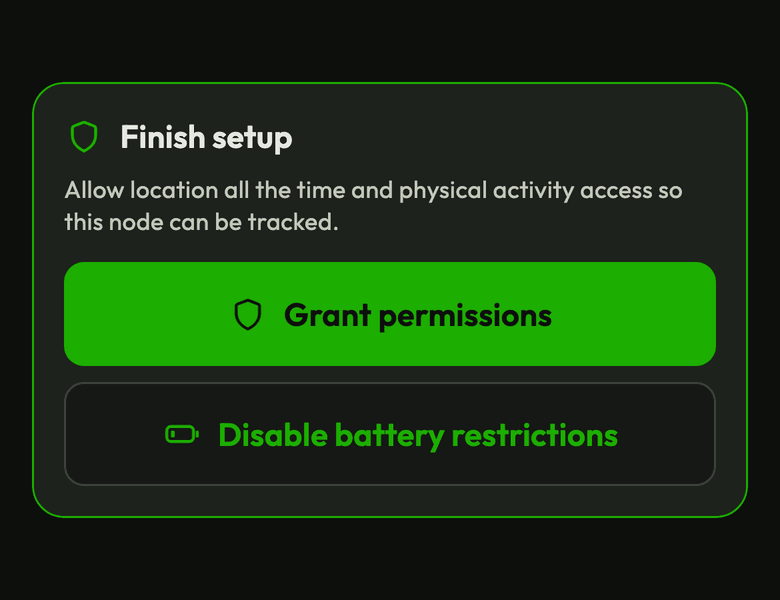
After you first sign in, the app explains this under Location use. Tap Continue, or Open Settings if your phone needs you to change it there. A Finish setup card stays on the map until everything is in place.
On iPhone
- Tap Continue on the Finish setup card and answer the prompts for location and motion.
- If the card says the node needs “Always”, tap Open Settings.
- Go to Location, choose “Always”, and come back to the app.
On Android
- Tap Grant permissions on the Finish setup card.
- If the card says the node needs “Allow all the time”, tap Open Settings.
- Go to Permissions, then Location, choose “Allow all the time”, and come back to the app.
- Tap Disable battery restrictions if the card shows it.
- Tap Allow auto-start if the card shows it. Some phones stop background apps unless you do.
While tracking runs on Android, you'll see a notification saying “Location tracking active”. That's normal.
Why motion access
The app uses motion or physical activity to tell when you've stopped, so it can save battery while you're not moving.
Getting your first position
The map shows “Getting your location…”. GPS can take longer indoors, so a window or open sky helps. Everything else in the app works in the meantime.